How to Download Your Instagram Data: The Exact Steps for an All-Time JSON Export
The exact menu order for exporting Instagram data from Meta Accounts Center as an all-time JSON file, plus what to do when the file never arrives or is far too large. Written from the actual screens.
CheckMate operator · First published · Facts reviewed · About 12 min read
You do not need to type your password into a third-party app to check your Instagram mutuals from a file. You create a copy of your own account data in Meta Accounts Center, then open the downloaded ZIP in your browser. This guide collects the menu order, re-checked on the Korean-language screens in July 2026, and the fixes for the errors people actually hit.
Two choices matter for relationship analysis: the date range must be "All time" and the format must be "JSON". HTML is easier to read by eye, but its structure differs and may not suit automated analysis, and choosing a recent range can drop older relationship records. If you do not need photos and videos, select only the followers and following items to keep the file small.
Meta's screens and processing time vary by account, region and app version, so this guide never promises that the file "always arrives within minutes". The most reproducible approach was to request it using the checklist below, download it before the link expires once the ready notification arrives, and then verify the file name and the JSON inside.
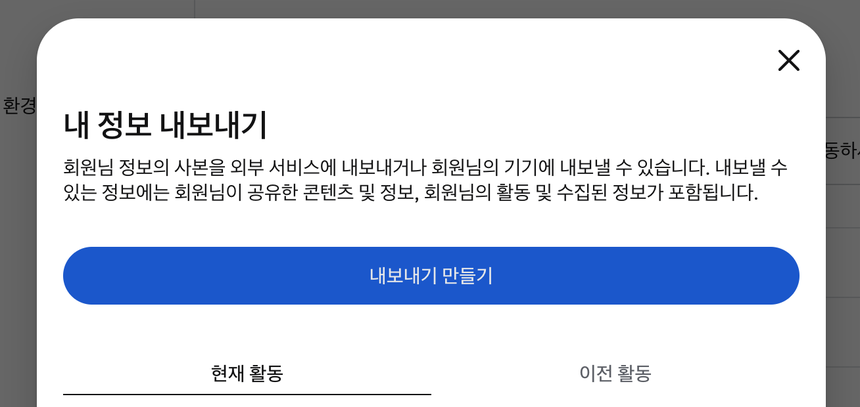
1. Create a new export in Accounts Center
In the Instagram app, open the menu on your profile, go to Settings and activity, then open Accounts Center. On a PC, sign in to Accounts Center and find the "Your information and permissions" area. Meta has officially announced that the Download Your Information feature moved into Accounts Center, so the "data download under the Security menu" path described in older guides may no longer match what you see.
If several Facebook and Instagram accounts are linked, select exactly the one Instagram profile you want to analyse. Including other accounts makes the ZIP larger and the relationship files harder to find. You may be asked to confirm your password during the request; enter it only on Meta's own screen.
- 1Open Accounts Center
From Instagram settings, go to Accounts Center and choose "Your information and permissions".
- 2Choose export
Open the menu labelled "Download your information" or "Export your information" and create a new export.
- 3Pick the Instagram profile
Among the linked accounts, select only the Instagram profile you want to analyse.
- 4Download to device
Choose the option that downloads to your device rather than transferring to another service.
- 5Set the date range to All time
Change the date range to "All time". If you pick a specific range, records outside it may be excluded from the request.
- 6Set the format to JSON
Select JSON as the format. Unless you are archiving photos and videos, lowering the media quality has no effect on the relationship JSON.
- 7Submit and watch for the notification
Meta sends an email or app notification when the file is ready. You can also check the status in the export list inside Accounts Center rather than relying on the link.
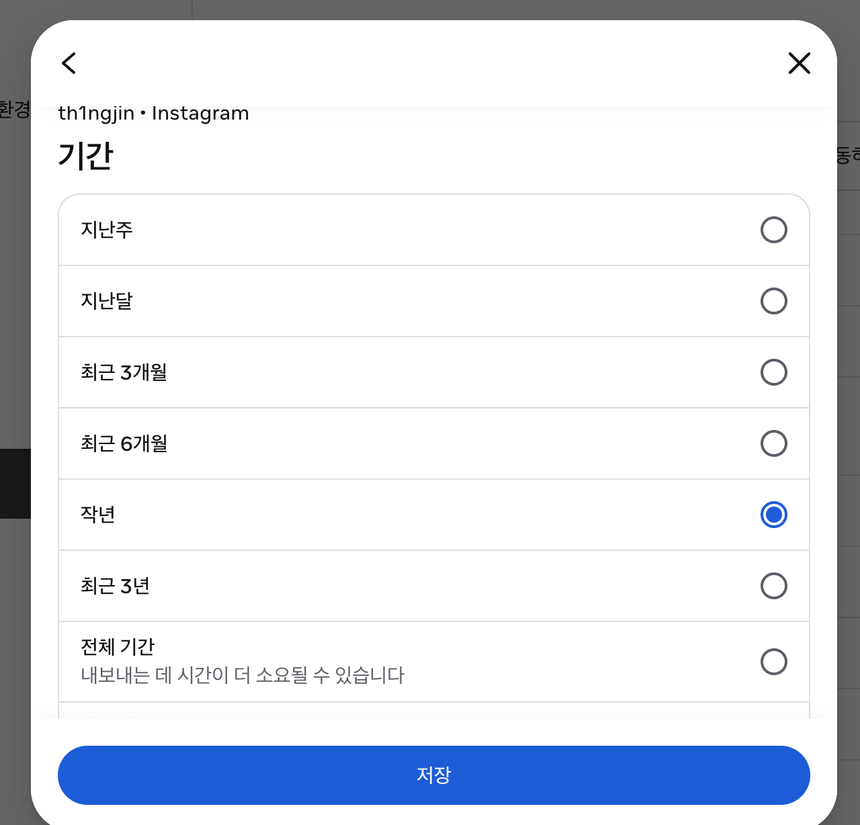
2. What to select so the file stays small but the analysis is complete
If you only want unfollowers and mutuals, the followers and following items under Connections are what matter. Selecting all information plus high-quality media can push the file into hundreds of megabytes or several gigabytes. The full ZIP the operator verified was 613 MB, but size depends on your posts, messages and media, so there is no fixed "normal" size.
To also see CheckMate's "How Instagram sees me" report, the export must include ads information, saved posts, likes, comments, viewed content and messages; the matching cards appear only when those sections exist. Missing sections are hidden rather than faked as errors. Sensitive DM text and the other party's names are never sent to an aggregation server, and the ZIP itself never leaves the browser.
| Goal | Recommended selection | Effect on file size | Result |
|---|---|---|---|
| Mutuals and current not-following-back | Followers and following | Smallest | Relationship lists and observed range |
| Activity report | Likes, comments, viewed content, saved | Medium | Activity volume and time distribution |
| Ads and interests check | Ads information | Small | Categories and advertiser list present in the file |
| Photo backup | Posts, stories, high-quality media | Very large | Useful for archiving, unnecessary for relationship analysis |
3. What to check before opening the ZIP
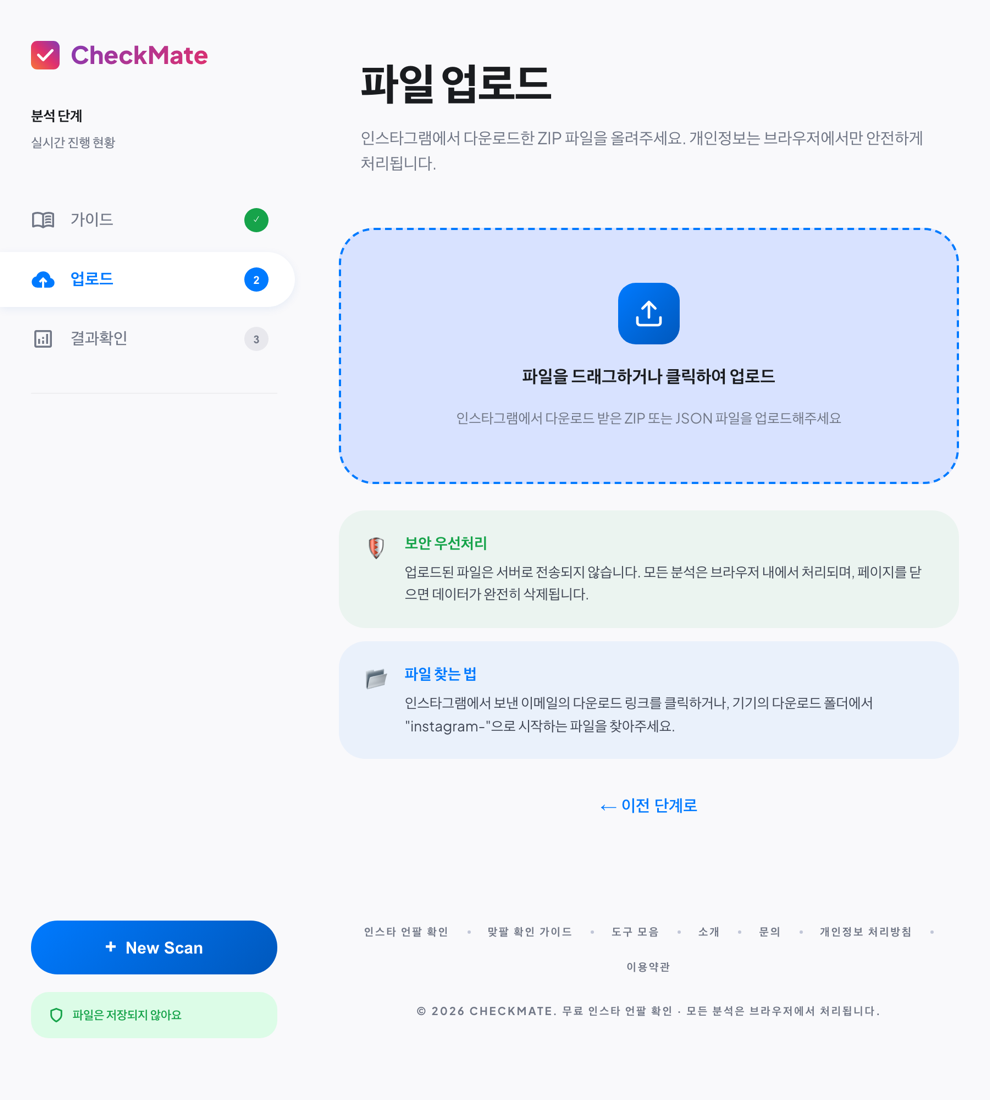
When the ready notification arrives, go back to the export list in Accounts Center and download the file. Check the sender and domain of any email link and do not open unfamiliar attachments. Upload the downloaded ZIP as-is; moving files around inside it or re-zipping it tends to cause path-detection errors.
If you open the archive yourself, look for followers_1.json and following.json, or JSON files containing relationships_followers and relationships_following. Accounts with many followers may have the list split into several files such as followers_2.json. Assuming there is only one file, or reading only the first page, produces a count lower than the real one.
- Confirm the extension is .zip, and keep the original ZIP even if your browser unpacked it automatically.
- If the format is HTML, create the export again as JSON with the same selections.
- If there are several followers_N.json files, all of them must be included.
- Remember that follow relationships can change between the time of the request and the time of the analysis.
4. Diagnosis table: the file never arrives or cannot be analysed
Do not treat a delay as a failure. Meta's official help pages say preparing an export can take time, and the variance between accounts and data volumes is large. Even without an email, check the app notifications and the export status in Accounts Center. There is no evidence that repeated requests speed things up, and they only make it harder to tell which request is the current one.
When reporting an error, never send the ZIP itself or your account password. The error text on screen, your browser and operating system, the ZIP size, and the requested format and date range are enough for a first diagnosis. CheckMate's contact page does not ask for the original file either.
| Symptom | Likely cause | First thing to do |
|---|---|---|
| No "ready" email | Still processing, notification filtered, or a different account selected | Check the Accounts Center status and the selected profile |
| ZIP is far too large | Photos, videos and all information included | Request only the relationship items again with lower media quality |
| No followers file | Connections not selected, or a different account | Check the selected items and the account path inside the ZIP |
| Only HTML files | HTML chosen as the format | Export again in JSON format |
| Numbers differ from the app | Gap between request, generation and analysis time, or missing files | Check every followers_N file and the observed range |
5. Treat the export file as carefully as a password
A full export can contain messages, searches, location clues, contacts and ad activity. Do not leave it on a shared PC for long or upload it to analysis sites of unknown origin, and once you are done, check your downloads folder and the recycle bin. If you use cloud sync, make sure the ZIP has not been backed up to an account you did not intend.
CheckMate reads the file you pick in the upload input with JSZip, in browser memory. In this Recovery Release the code that sent usernames, file names and derived aggregates to Firestore was removed along with ad requests, and an end-to-end test with the real 613 MB ZIP confirmed zero Firestore and zero ad-network requests. You can still verify this yourself in the Network tab of your browser's developer tools.
Sources and how they were verified
- Meta Newsroom — Managing your information across apps in Accounts Center — Confirms that Download Your Information moved into Accounts Center.
- Instagram Help Center — Review and export a copy of your information — The reference link for the official export feature and account security guidance. Checked 2026-07-16.
- CheckMate Privacy Policy — The published scope of local processing and of the information that is not stored.
Frequently asked questions
How many minutes does the data usually take to arrive?
It depends on the account and the requested scope, so no fixed time can be promised. Meta says preparation can take a while. Check the export status in Accounts Center as well as your email.
Can I select only followers and following instead of all information?
Yes, that is enough for mutual and current not-following-back analysis. To see the ads, saved, DM and activity reports you need to add those information items.
I received HTML but it is a ZIP. Can I use it?
The .zip extension alone is not enough. The relationship files inside must be JSON for the current parser to read them reliably. Select JSON as the format and export again.
Do I have to send my file to the operator to get an error fixed?
No. Never send your password or the original ZIP. Start with the error text, the file size, the requested date range and format, and your browser details.